
Description
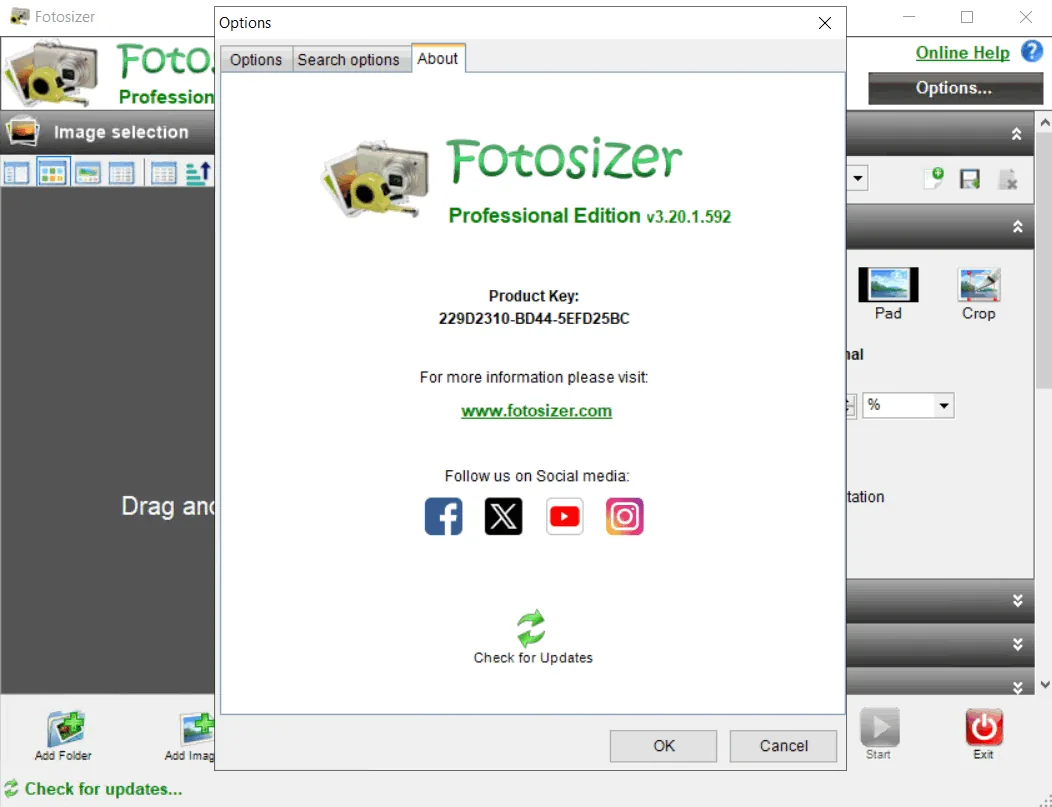
Fotosizer allows users to batch resize, rotate, and rename large numbers of photos. With just three simple steps, you can resize hundreds of photos at once. This tool provides an efficient and fast solution for managing large volumes of images and preparing them for various purposes such as online sharing, emailing, or displaying on specific devices. It also provides users with additional features such as PNG image optimization, cropping, and batch image rotation to help them adjust their images to the best possible shape. Users can set their desired output settings and save the edited images to a desired location.
Program features and functions
- Flexible resizing modes: Choose from a variety of resizing modes to suit your preferred way of adjusting photo dimensions.
- Resize by percentage: You can change the dimensions of images by selecting the desired percentage of width and height.
- Custom dimension setting: The user can manually enter and apply their desired width and height.
- One-sided resizing: It is possible to resize by selecting only one side (width or height) and the other side will be automatically resized to maintain the proportion.
- Dimensional uniformity: Using the Pad resize mode , you can resize all photos to the same size, regardless of their original dimensions.
- Maintain Aspect Ratio: The program ensures that the original aspect ratio of images is maintained during the resizing process.
- Specify storage location: The user can specify where the resized images are saved.
- Simultaneous operations on horizontal and vertical images: The program is able to resize portrait (vertical) and landscape (horizontal) images simultaneously.
- Use default sizes: To speed up the process, the app provides a list of preset sizes, including screen sizes for devices like the iPod , iPhone , and Sony PSP .
- Ability to crop images.
- Apply optimization to PNG images.
- Using the right-click menu: The user can select the desired images in Windows File Explorer and then import them into the program by right-clicking and selecting the “Resize with Fotosizer” option.
- Adding images from within the program: Images can be selected using the “Add Images” button within the program environment.
- Add a folder containing images: Using the “Add Folder” button , an entire folder of images can be selected for batch operations.
- Drag and drop capability: You can drag and drop images or folders of images directly into the image selection list in the Fotosizer app.
- Including subfolders: When adding a folder, subfolders can also be included in the operation.
System requirements
- OS : Windows
- RAM: 2GB of RAM
- Hard Drive Space: 50MB of free space
- Display: SVGA or higher resolution display (800×600 or higher resolution)
- Input: Mouse and Keyboard
Pictures

Installation Guide and Tips
It is included in the Readme file.
Download link
Download Fotosizer Professional 3.21.0.594
File(s) password: www.downloadly.ir
File size
7 MB